
blog ·
Sandboxing coding agents with Muster Agent
Containment is what lets you give an agent real tools. This post covers the layers worth using, in order, and exactly what Muster Agent does at each one, including where the limits are.
Why contain an agent at all
Capability and risk arrive together.
An agent that can run commands can fix your build, and it can also delete a directory, leak a token into a log or install something you did not intend. Most of the time nothing goes wrong. Containment is for the times it does, and it works best when it is cheap enough that you apply it by default.
Think in layers rather than a single switch. Each layer answers a different question: how much may the agent do, where does it do it, and what can it see while doing it.
Layer 1
Permissions: how much may it do?
Start with what the agent is allowed to do at all. A good model has a few clear levels rather than dozens of toggles. Read-only for exploring, an editing level that stays inside the project, and an unrestricted level for work you have already contained. Pick the lowest level that lets the task succeed, and raise it only when you hit a real need.
Layer 2
Location: where does it do it?
The same command is different on your main checkout and in a throwaway copy. A git worktree gives the agent its own working directory and branch, so a mistake never touches the files you are editing. A disposable container goes further: it has its own filesystem, its own processes and, ideally, no network until you allow it.
Layer 3
Visibility: what can it see?
Even a well-behaved agent can echo an environment variable into a log. The safest secret is one the command never receives. Strip keys, tokens and credentials from the environment of every command, remove them from anything stored, and pass an agent only the variables you have deliberately allowed.
What Muster Agent does
Each layer, concretely.
Permission modes
Every chat has one of three modes. Read-only answers and reads but does not edit files or run commands, and does not drive the computer or browser beyond reading pages and taking screenshots. Workspace lets the agent work inside the project folder, with approval cards for steps that need your say-so. Full access runs without approval prompts and is meant for work you have already contained. For engines that run as command-line tools, Muster Agent translates the mode into that tool’s own flags, so the mode holds whichever engine you pick.
Worktrees and scoped computers
A menu in the composer chooses where a chat runs: this computer, a sandbox, or a new worktree. A sandbox is a disposable Docker computer scoped to a chat or to a folder, with its own history, files and services. Defaults are conservative: no network unless you allow egress, 512 MiB of memory, one CPU and 256 processes, adjustable per computer, with at most two computers running at once. Environment variables and tool access are allowlisted, and extra folders can be mounted read-only. Tool and skill layers are mounted as read-only snapshots. You can watch the computer’s memory, CPU and process use against its limits, and read its command history and files next to the chat.
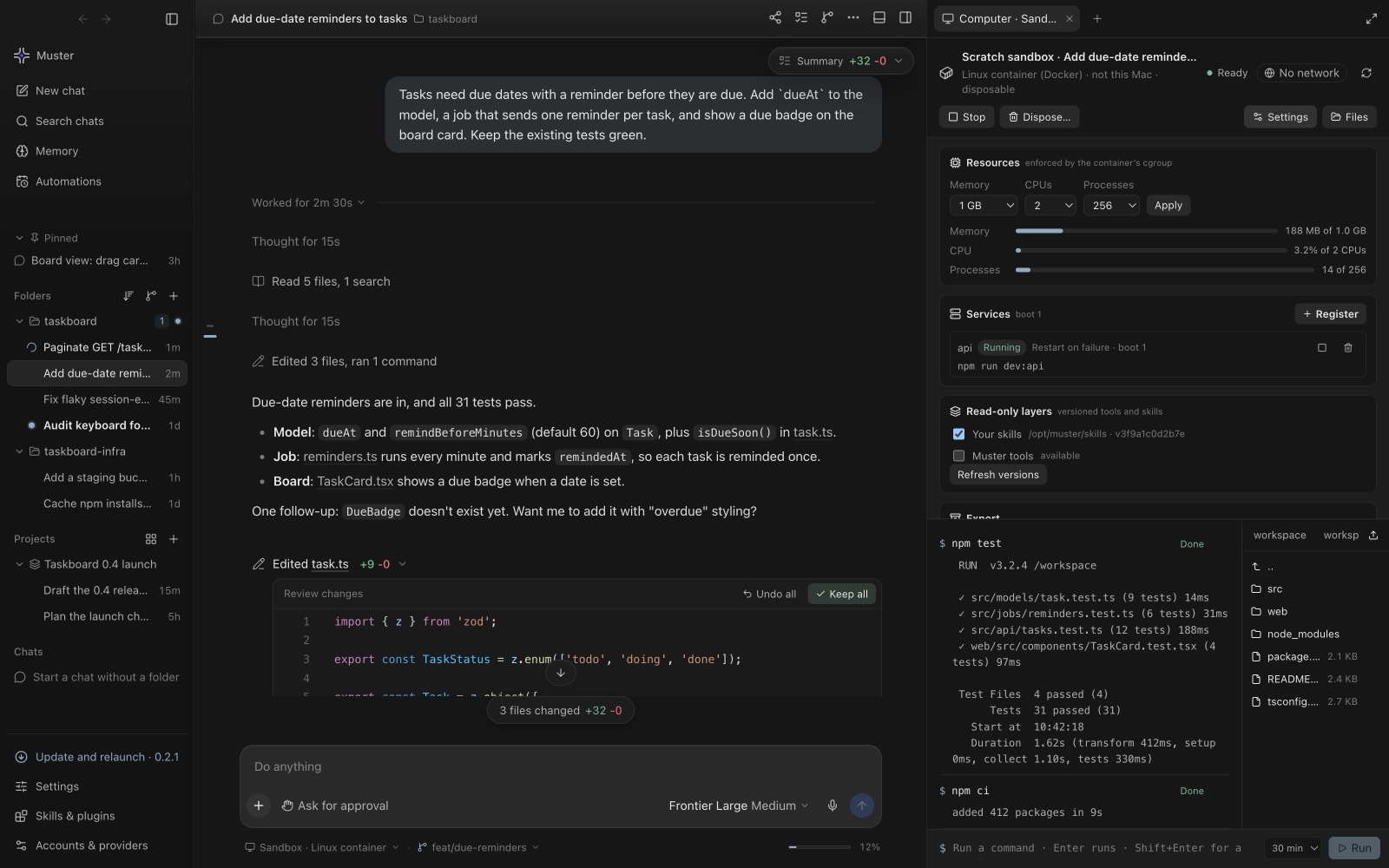
Secrets
Commands the agent runs get a scrubbed environment: variables that look like API keys, tokens, passwords or credentials are removed. Secrets are also removed from stored commands and diffs. Provider keys you save in the app are stored encrypted, and on Linux only with a real keyring. File tools never follow a link out of the project folder, and pressing Stop ends everything a command started, including programs it detached.
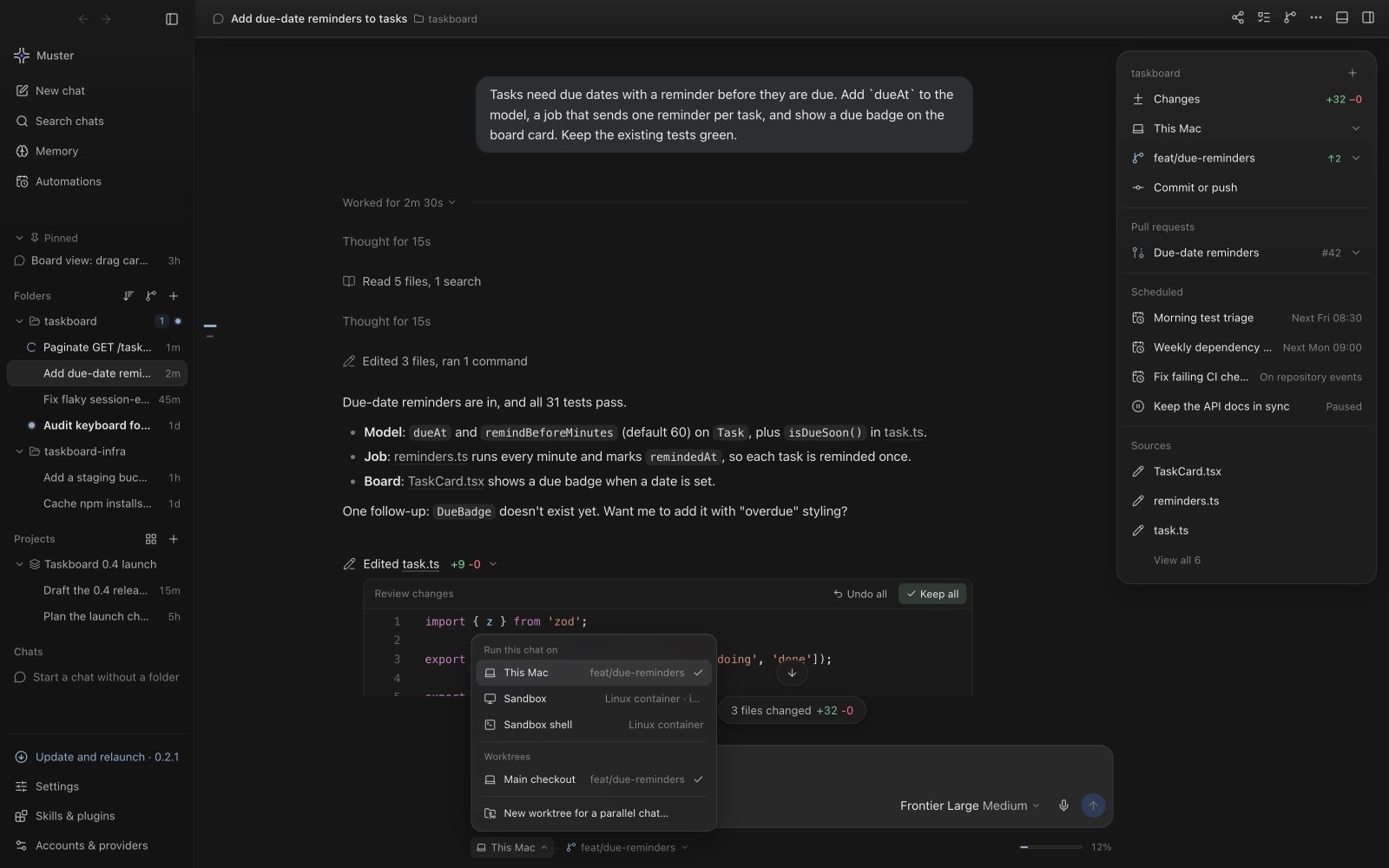
The honest limits
What this does not do.
- Docker is required for sandboxes. Without it, everything else works, but you have worktrees and permission modes rather than containers.
- The agent’s own shell still runs on your computer. A sandboxed chat tells the agent so, truthfully, under the chat’s access level, and asks it to use the sandbox tools instead. Containment comes from combining the sandbox with the right mode, not from the label.
- Model providers still receive what you send them. A sandbox contains commands, not the prompt. If code must not leave your machine, use a local model.
Test your containment
Trust, but verify.
Do not assume a setup is contained; check it once. In a sandboxed chat, ask the agent to try to reach an external address and confirm it fails while network is off. Ask it to print its environment and confirm that no keys or tokens appear. Ask it to list a folder you did not grant and confirm it cannot. These take a minute and tell you what your configuration really does, rather than what you hoped.
Repeat the checks after changing the configuration, for example after allowing network egress for a package install. Turn egress back off when the step is done.
When a sandbox is overkill
Not every task needs a container. Reading code, drafting documentation and making small edits in a repository you know are well served by read-only or workspace mode in a worktree. Reserve sandboxes for work that installs dependencies, runs unfamiliar scripts or must start from a clean machine. Using the lightest layer that fits keeps containment from becoming a chore you skip.
A sensible default
What to do on a Tuesday.
For unfamiliar code: read-only, on this computer, to explore. For a real change: workspace mode in a new worktree, so the main checkout is untouched. For anything that installs packages, runs unknown scripts or needs a clean machine: a sandbox, with network off until a step needs it. Keep full access for contained environments, and always review the diff before you keep a change. More on that in reviewing agent changes safely, and on the product side in the sandboxing guide.